

How to Set Parental Controls on YouTube
This post may contain affiliate links. As an Amazon Associate, I earn from qualifying purchases.
In today’s digital age, YouTube is a go-to platform for entertainment and education for kids. While it offers a wealth of content, not all of it is appropriate for young viewers. Fortunately, YouTube provides several parental control features that can help you ensure your children are watching safe and age-appropriate content. In this guide, we’ll walk you through the steps to set up these controls.
1. Creating a Google Account for Your Child
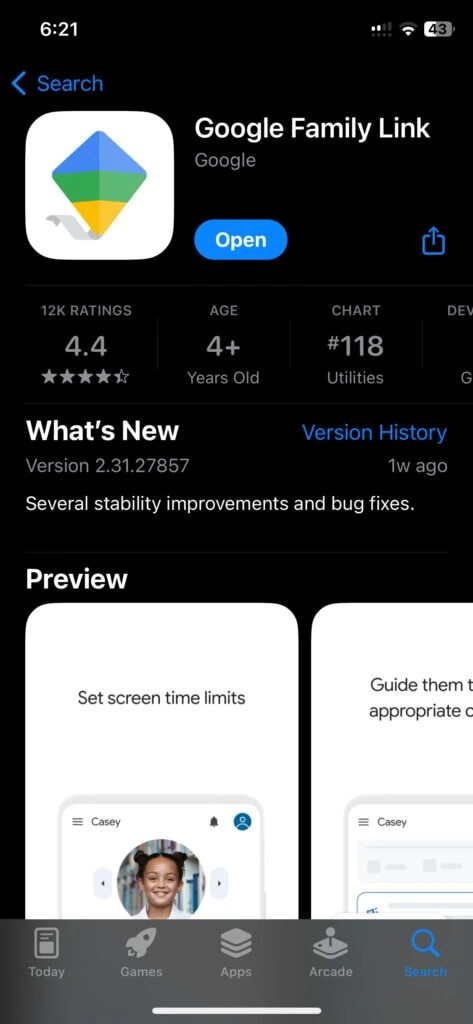
Before you can set up parental controls, your child needs to have a Google account. For children under 13, you can create a supervised Google account through the Family Link app.
Steps to Create a Google Account for Your Child
- Download the Family Link app on your device.
- Follow the on-screen instructions to create a Google account for your child.
- Once the account is created, sign in to YouTube using this account.
2. Setting Up YouTube Kids
YouTube Kids is a kid-friendly version of YouTube designed for younger audiences. It’s a great place to start if you want a safer environment for your child.
Steps to Set Up YouTube Kids
- Download the YouTube Kids app from the App Store or Google Play Store.
- Open the app and sign in with your Google account.
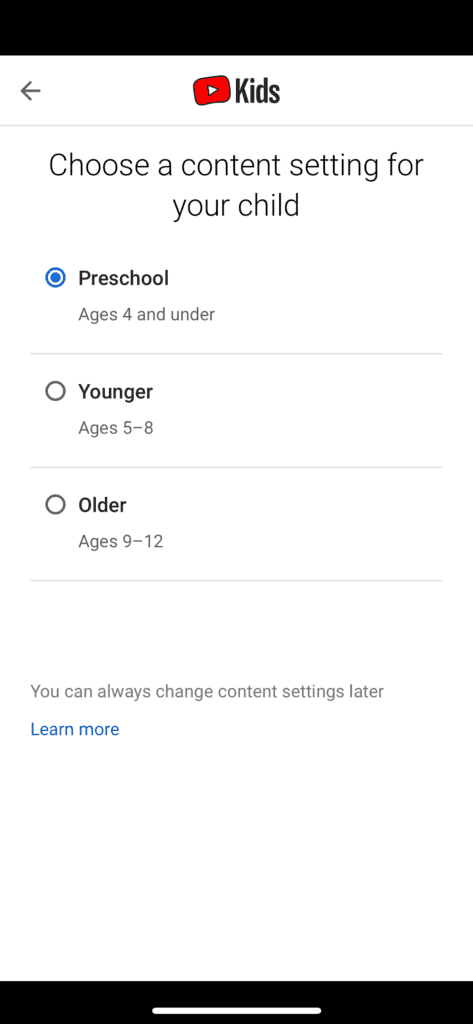
- Follow the on-screen instructions to set up a profile for your child.
- Choose the appropriate age group for your child to ensure they receive suitable content.
3. Enabling Restricted Mode on YouTube
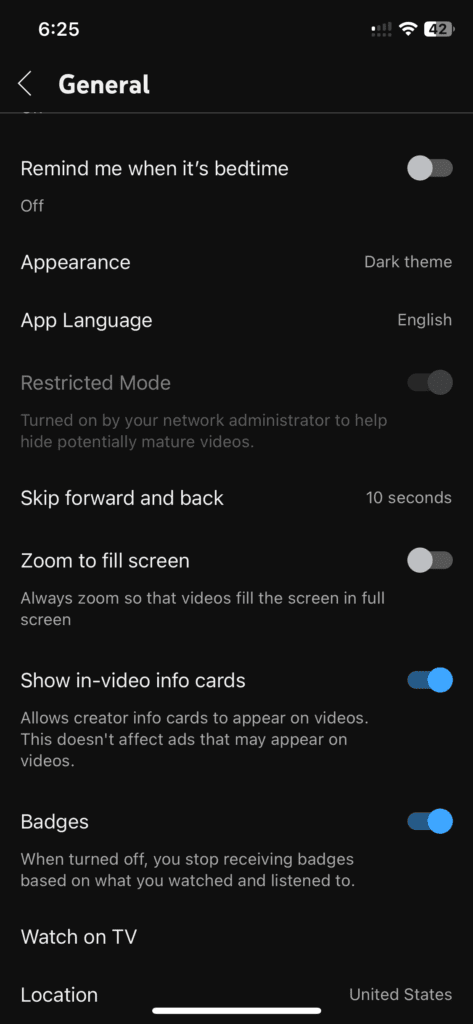
Restricted Mode is a feature on YouTube that helps filter out potentially mature content. It’s not foolproof, but it’s a good additional layer of protection.
Steps to Enable Restricted Mode
- Open YouTube and sign in with your Google account.
- Click on your profile picture in the top right corner.
- Select “Settings” from the dropdown menu.
- Go to the “General” tab.
- Toggle the “Restricted Mode” option to on.
4. Using Supervised Accounts on YouTube
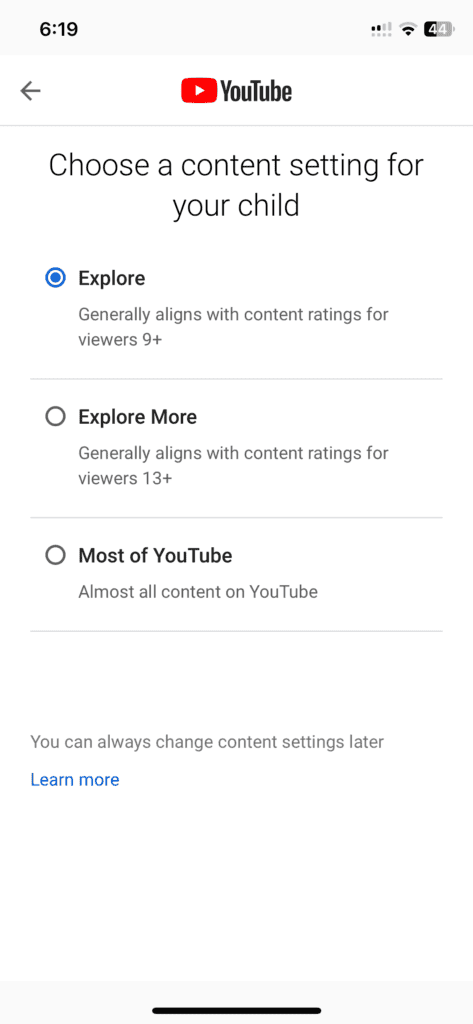
For older kids and teenagers, YouTube offers supervised accounts, which provide different levels of control and content filtering based on their maturity.
Steps to Set Up a Supervised Account
- Open the Family Link app on your device.
- Select your child’s account.
- Tap on “Manage settings.”
- Go to “YouTube settings.”
- Choose the appropriate content setting: “Explore,” “Explore More,” or “Most of YouTube.”
5. Monitoring Your Child’s Activity
Regularly monitoring your child’s YouTube activity can help you stay informed about what they’re watching and address any concerns.
Steps to Monitor Activity
- Open the Family Link app.
- Select your child’s account.
- Tap on “View activity” to see their YouTube history and screen time.
6. Setting Time Limits
Setting time limits ensures your child doesn’t spend too much time on YouTube, promoting a healthy balance between screen time and other xilinx.
Steps to Set Time Limits
- Open the Family Link app.
- Select your child’s account.
- Tap on “Daily limit” and set the desired time limit.
Final Thoughts
Setting parental controls on YouTube is essential for ensuring a safe and positive online experience for your child. By using features like YouTube Kids, Restricted Mode, and supervised accounts, you can have better control over what your child watches. Remember to regularly review and adjust these settings as your child grows and their needs change.
If you have any questions or need further assistance, feel free to leave a comment below. Happy parenting!
Kate is mom of two rambunctious boys and a self-proclaimed super nerd. With a background in neuroscience, she is passionate about sharing her love of all things STEM with her kids. She loves to find creative ways to teach kids computer science and geek out about coding and math. She has authored several books on coding for kids which can be found at Hachette UK.


